Contents
Field Guide · 02 of 18
Getting started
How to create your RALLIER account, verify your email, and request to join your car club — or host an event without one.

Getting started on RALLIER means three things in order: create an account, finish a short onboarding, and find the club you actually came for. None of it requires already knowing someone in that club — RALLIER lists every club open to join, and anyone can ask.
On the web
- Create your account. Register at rallier.app with your name, nickname, email, and password, and verify your email address — several onboarding steps stay locked until you do. An invite code is optional: one from a member or admin of a club, or from that club's printed QR sticker, opens registration with the code already filled in (and sometimes your name and email too) and drops you straight into that club. Without a code, just sign up and find a club in Explore. If new sign-ups are paused when you arrive, RALLIER offers a waitlist and emails you when it's your turn.
- Complete onboarding: fill in your profile (name, nickname, avatar), and add a vehicle to your garage if you plan to post build journals about it later. Onboarding tracks which steps are done and which aren't, so you can leave and come back without losing progress.
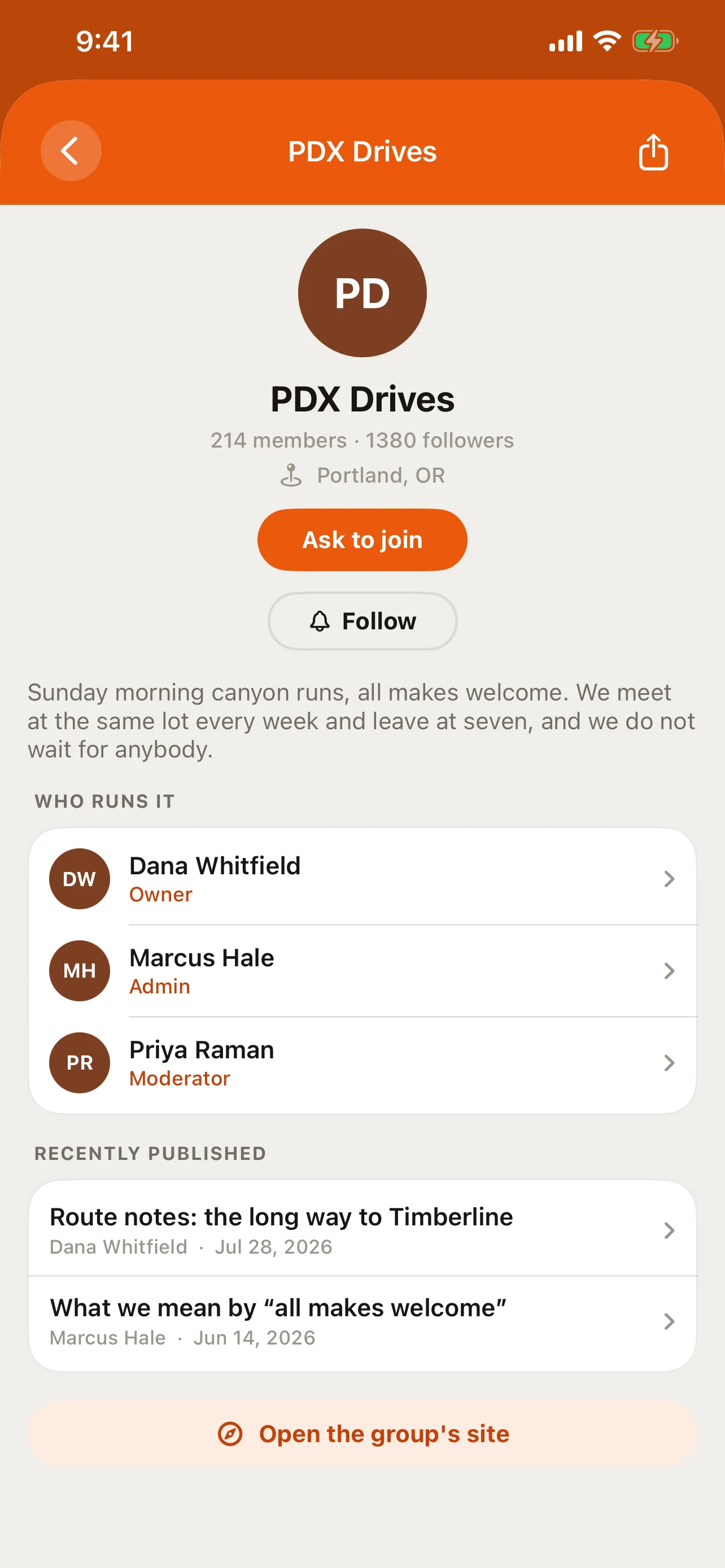
- Find your club. Search or browse Explore, open a club's profile, and select Request to join this group. An admin reviews the request — every club is listed, and anyone with an account can ask.
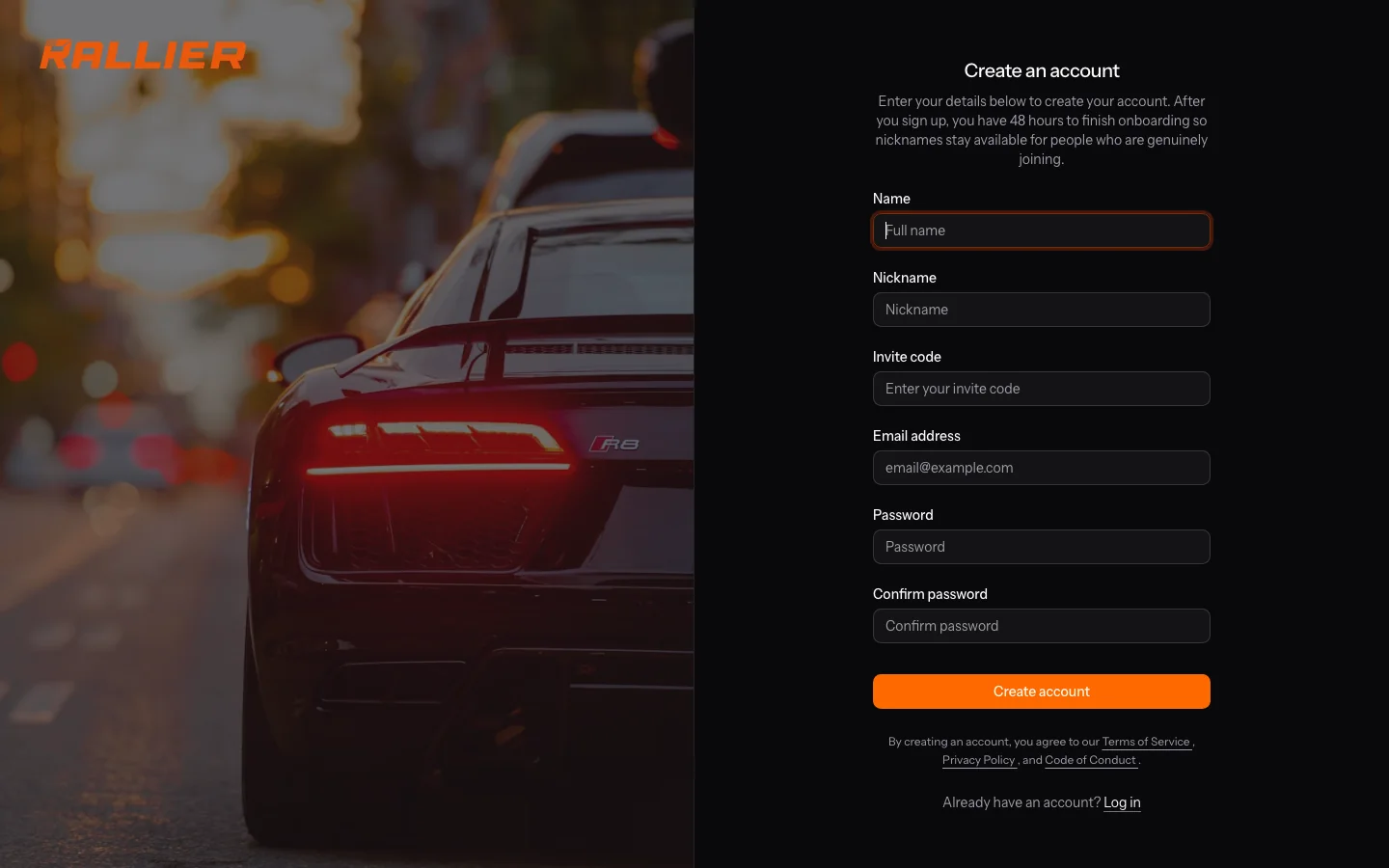
From there, account settings — profile, password, appearance, and two-factor authentication — live under Settings, reachable from the account menu at any time. Turning on two-factor adds a code step at sign-in from then on, on both the web and the app.
Starting a new club of your own, rather than joining someone else's, is a separate path from the one this entry covers — clubs are started on the web, with their own setup, and it's not something a first-time member needs to think about.
There's a third path if you don't want a club at all: to run a one-off event, start from Host an event on the RALLIER website. You get a host space of your own for the event, and nobody has to join anything to attend. See Events, for organizers for how it works.
In the RALLIER app
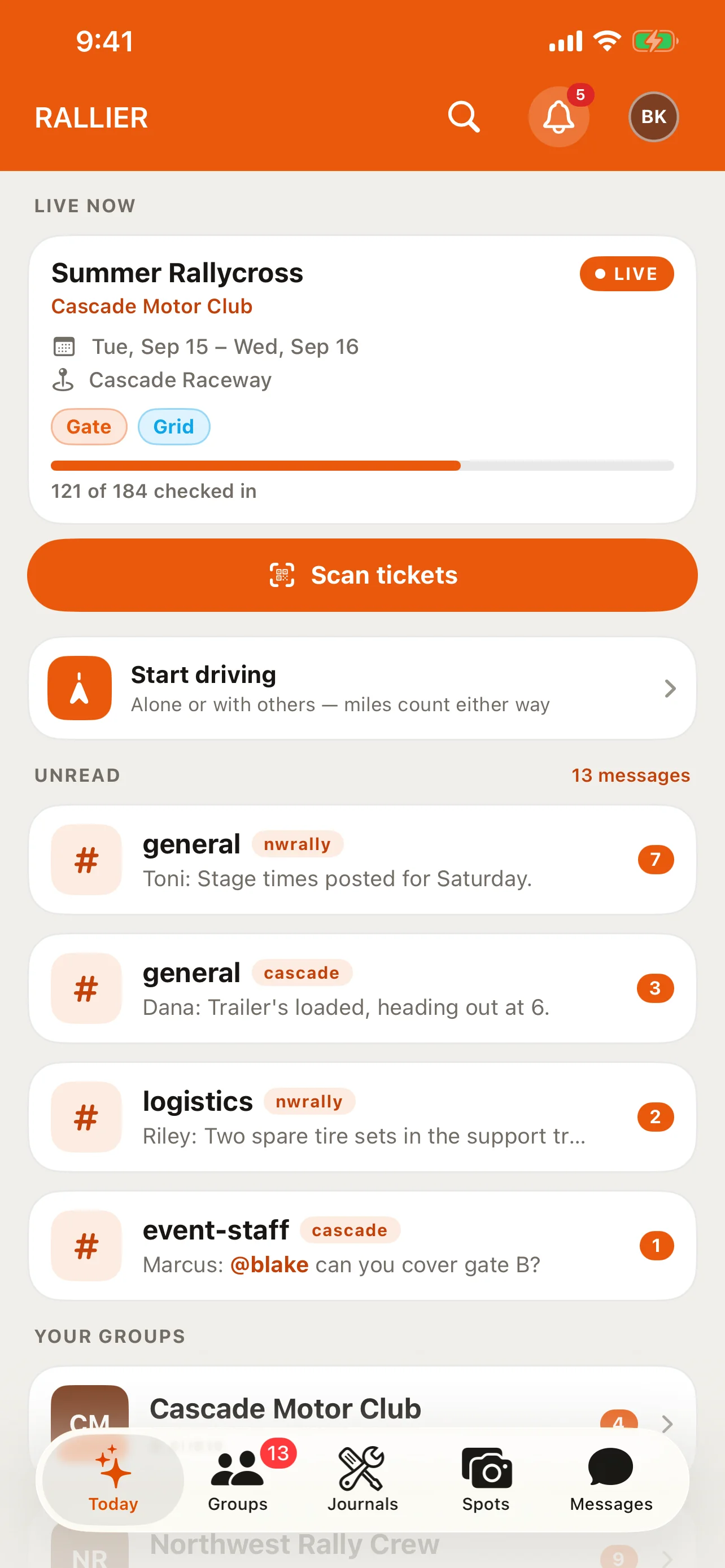
Download the RALLIER app and sign in with the same account you created on the web (two-factor works the same way here if you've turned it on). You land in the same shell described in What RALLIER is, already showing whatever clubs you've joined, with nothing left to set up a second time.
To find a new club from the app, either open Groups and tap Find more groups, or open the account menu behind your header avatar and choose Explore. Both lead to the same directory as the web, and the same request-to-join step (labeled Ask to join on Android). On an iPad or a large Android screen, Explore and your account each get a permanent row in the sidebar instead of hiding behind a tap.
Signing in on a second device, or reinstalling the app, doesn't send you through onboarding again — that only happens once, on the web, the first time your account exists. Whatever you completed there — profile, vehicle, club membership — is already waiting for you.
Tips
- No invite code? You don't need one to sign up — a code or QR invite just puts you straight into that club.
- Verify your email before onboarding asks for anything else — some steps are blocked until you do.
- Add a vehicle early if you're planning to keep a build journal; RALLIER's build-log journal type is tied to a specific car.
- A request to join isn't automatic. If a club's admins are slow to review it, that's on them, not on something you did wrong.
- You can request to join more than one club — RALLIER doesn't limit how many you belong to.
- Two-factor authentication, once turned on, applies everywhere you sign in, not just where you turned it on.