Contents
Field Guide · 15 of 18
Driver mode
Start a drive alone or with a convoy, see road alerts, cameras, fuel and charging on the map, and get turn-by-turn guidance on your phone or car screen.

Driver mode is the screen you open at the start of a drive, alone or with a convoy, and it stays the one screen for the whole trip — a map, a way to guide you turn by turn, and everything else a driver actually wants to see about the road ahead.
In the RALLIER app
On iOS, tap Start driving from Today to go alone, or Drive with others to set up a convoy — the Convoys entry covers that side in full. On Android, the same choice lives on the Driver mode screen, with Start, Join, and Find tabs, alongside a separate Start driving screen for solo drives. Either way, before your first drive you're asked to set a home location: RALLIER hides your position within a few hundred meters of home, so you appear once you've actually left and disappear again once you've arrived, on every drive from then on.
Once you're moving, the map carries layers you switch on and off from Layers: road alerts (police, crashes, hazards, slowdowns and closures, some tapped in by other drivers and some filed by state transportation departments), speed cameras, fuel stations and EV charging along the road ahead, and a general read on how many other RALLIER drivers are out nearby — never who, only a rough count. Your own pins show up as their own layer too, and aircraft overhead and traffic cameras (tap a traffic camera for a live picture from it) are layers as well. Turning a layer on changes what you see; it never changes who sees you.
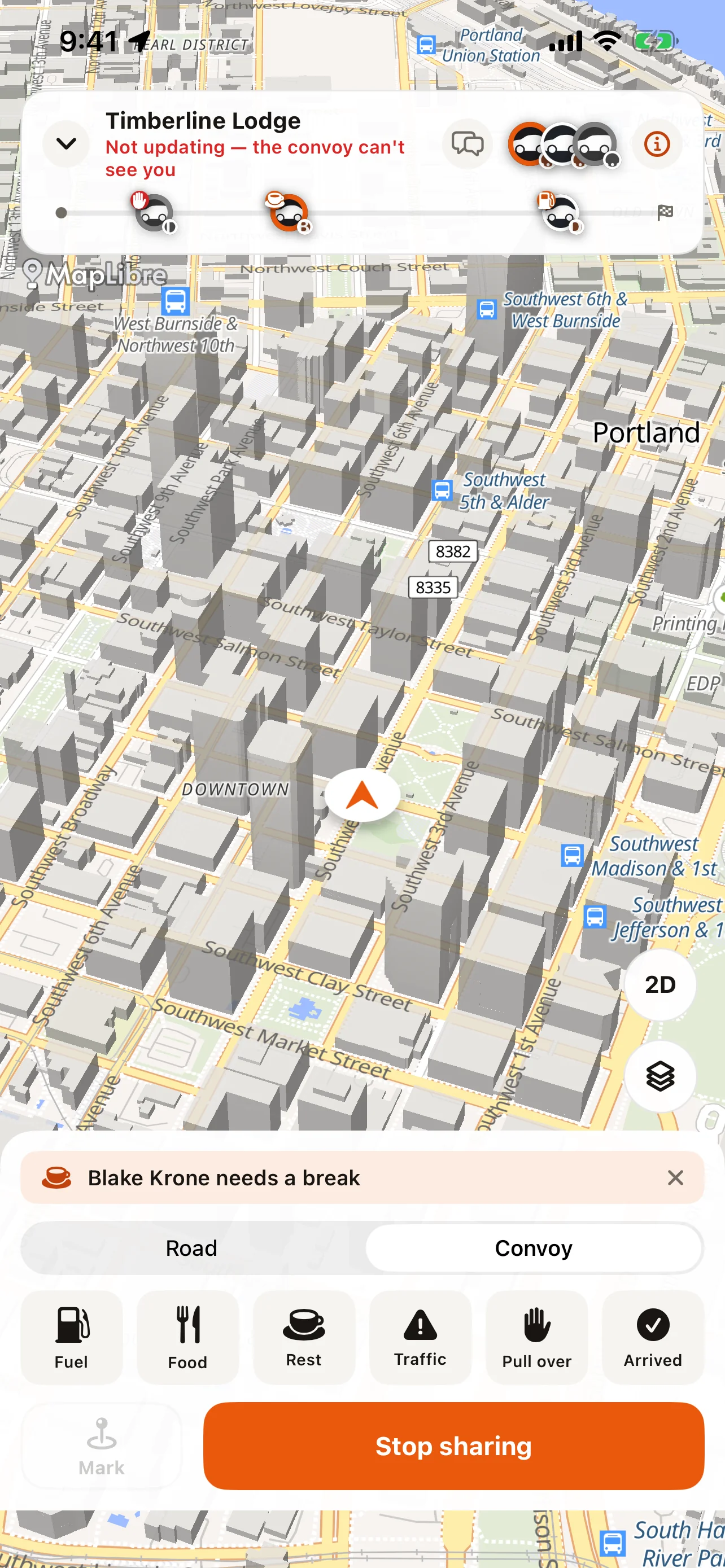
Reporting something is one tap: pick Police, Crash, Hazard, Slowdown, or Closed, and it goes on the map for everyone, unattributed, and ages off on its own — a police report clears in half an hour, a closure can sit for hours. Anyone who drives past can mark it Gone or confirm it's Still there.
When you're driving with a convoy, headed to an event, or following a saved route, RALLIER gives you spoken turn-by-turn directions with an on-screen banner, and you can mute the voice without losing the banner. Distances follow whichever unit system you drive in. Which map layers you see, and whether you can search for a destination of your own, depends on your account.
CarPlay, iOS only, puts the same drive on your car's own screen, including the dashboard and instrument cluster, so you're not looking at your phone at all. Start a free drive or a convoy, or search for a destination and go, entirely from the car — search only works while you're parked, the same way Apple's own search does. Road alerts, aircraft, and your pins are all drawn in the car; traffic and speed cameras, fuel, charging, and the routes layer stay on the phone.
Dropping a pin — a private note about a stretch of road worth coming back to — takes one tap: hit Mark while you're driving and it saves your spot with no typing required. More on pins, and where to name one, in Routes, pins, and the passport.
A drive ends itself if you park for a few minutes or after it's run a while, with a warning and the chance to add time before either happens. Tap Stop any time to end it yourself.
On the web
There's no drive screen on the web — driving happens in the app or the car. What the web holds is everything a drive leaves behind: your odometer, your level, the roads you marked, and the passport of places you've driven, all on the Roam page. See Routes, pins, and the passport for that side of it.
Tips
- Set your home location before your first drive — it keeps your parked car off the map, and RALLIER won't start a drive without one.
- Mount your phone before you start moving. Once you're on the road, glance at the map or let the spoken directions carry you rather than reading the screen — and if you have a passenger, let them handle anything that needs typing.
- A layer costs nothing to leave off. Turn on only what this drive actually needs.
- If a road alert is stale by the time you pass it, tap Gone so the next driver doesn't slow down for nothing.